Checks in SAP Business One are likely grayed out because the house bank account is locked. This safeguard prevents multiple users from simultaneously printing or double-issuing check numbers. To resolve this, a super user must uncheck the Lock Checks Printing box for the relevant account.
Follow these steps to unlock and print your checks:
- Access the House Bank: Navigate to Administration > Setup > Banking > House Bank Accounts.
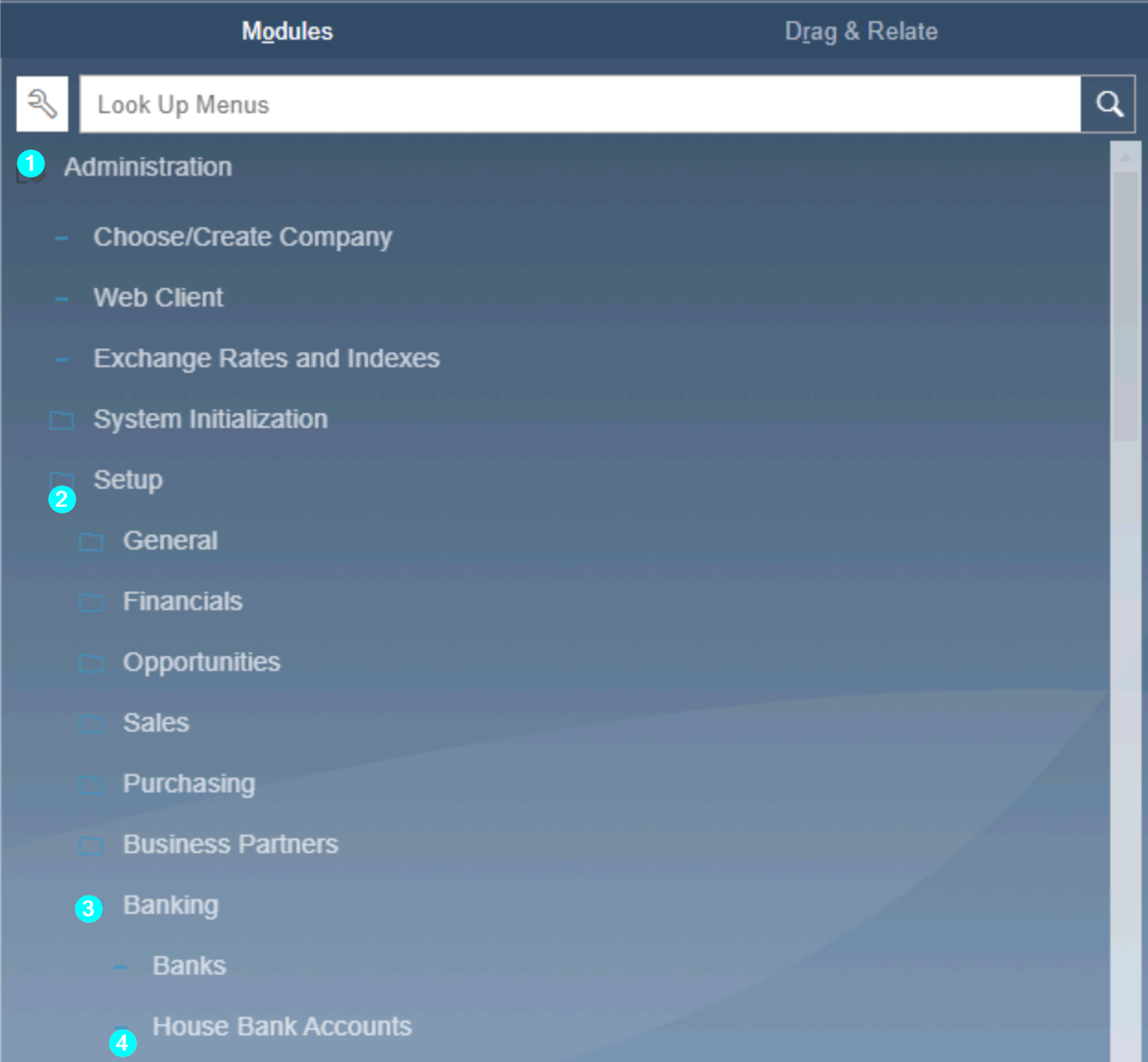
- Find the Account: Select the House Bank associated with the checks you are trying to process
- Unlock the printing: Scroll to the right until you find the Lock Checks Printing (or Locked for Printing) column and deselect the checkbox.

- Click Update.
- Return to the Check for Payment Printing window, and your checks will now be active and selectable.
Was this article helpful?
That’s Great!
Thank you for your feedback
Sorry! We couldn't be helpful
Thank you for your feedback
Feedback sent
We appreciate your effort and will try to fix the article